

sea-imagine-ai
New Member
A break screen needs to do the same thing every time you return to it. Start with a quiet background, put the message in an editable text source, and keep a still ready underneath. This article was prepared for Sea Imagine AI with AI assistance. AI helped draft the text and create the concept illustrations. It describes the documented OBS Studio controls and provides a local rehearsal checklist.
 Keep the upper left quiet and dark so the break message can sit there as an editable layer.
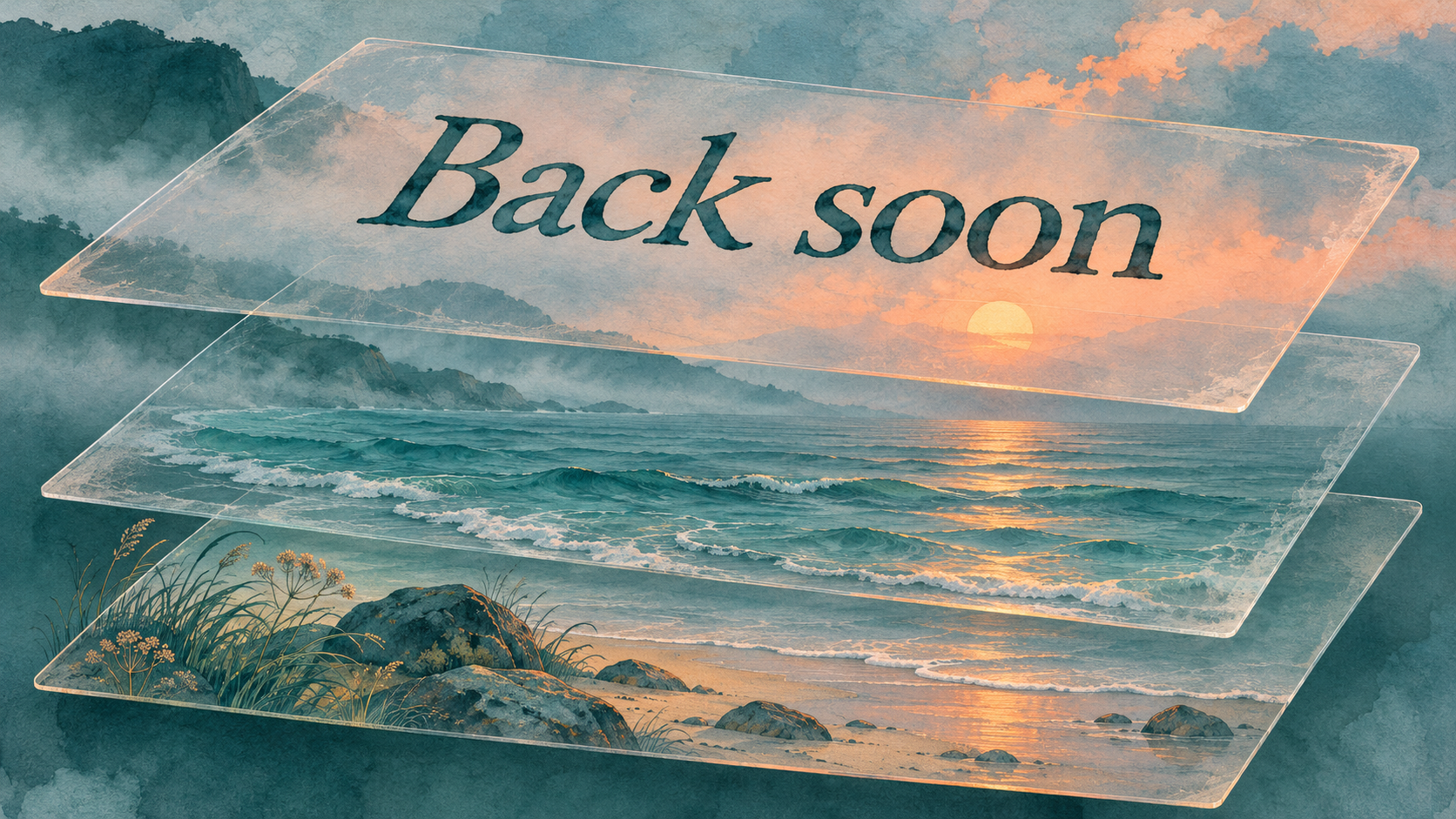 Stack editable text above the clip and the still beneath it. This is a scene diagram, drawn as three physical layers.
 Watch the recording back for the opening frame, the loop seam, and the switch to the still.
If you normally use a fade or stinger, repeat the return with that transition and watch the recording. Check which part of the motion is already visible when the transition ends. If the opening beat matters, give the file a short still lead-in or use a cut for this scene. Keep the still and text ready either way.
Pick a background with a quiet place for text
Use a short local video you own. A dark shoreline works if the rocks stay in place and the brightest ripples sit well away from the message. Save a matching still for the fallback. If you want to try a free image to video generator, no signup required, Sea Imagine AI can supply an optional five-second, 480p background. Its free form requires verification and the queue may take time. Use a wide frame to match a wide OBS canvas. For a subtle result, give the movement a small part of the frame:Fixed wide view of a quiet shoreline. Only the water near the lower right ripples gently. Keep the rocks, camera, lighting and dark upper left still. Leave the image free of text.
Stack the scene in OBS
- Make a new scene called Break. Add an Image source for the matching still and fit it to the canvas.
- Add a new Media Source above the still. Enable Local File, choose the background clip, and fit it to the same canvas. Enable Loop and Restart playback when source becomes active. Start with Close file when inactive off. OBS notes that unloading the file can introduce a short reload delay when you return.
- Add a Text source above both layers. Use Text (GDI+) on Windows or Text (FreeType 2) on macOS and Linux. Put “Back soon” in the quiet part of the frame and check that it stays readable as the water moves.
- If the clip has an audio channel, mute its source in the Audio Mixer and keep your other channels at the levels you intend. Use the mixer’s speaker button for mute. Monitoring controls what you hear locally.
Record one return, two loops and a fallback
Start a local recording with streaming inactive. Switch from your main scene into Break using a Cut for this first check. Stay for two loop boundaries, go back to the main scene, and then return to Break. Keep the break video exclusive to the Break scene during this test. Restart depends on the source becoming active, so a source that remains active in another scene may not start over on re-entry.- Restart. In the recording, the motion begins from the opening on both visits. If it resumes partway through, check the restart property and whether another visible scene shares that same source.
- Loop. Listen and watch at the point where the last frame returns to the first. If the brightness or water position jumps, trim the clip to a gentler seam in your editor. For a single play instead, disable Loop and enable Show nothing when playback ends to reveal the still beneath when the clip finishes.
- Mute. Play back the recorded audio as well as watching the mixer. Confirm that the background adds no sound and that the audio you intended to keep remains present.
- Fallback. Click the eye next to the Media Source to hide it while still on Break. The matching still and text should remain visible. This gives you a manual fallback if the video needs to come off the screen.
If you normally use a fade or stinger, repeat the return with that transition and watch the recording. Check which part of the motion is already visible when the transition ends. If the opening beat matters, give the file a short still lead-in or use a cut for this scene. Keep the still and text ready either way.